
Mitsubishi Outlander PHEV: What Is the Map Update Process?
Mitsubishi Outlander PHEV: What Is the Map Update Process?
Posted on September 14, 2026
Updating the navigation maps in the Mitsubishi Outlander PHEV can involve more than simply downloading a new map file. For models equipped with embedded navigation, the process uses the vehicle's navigation system, a USB drive, a computer, and the Mitsubishi Map Update Tool.
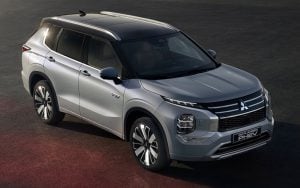
2026 Grey Mitsubishi Outlander PHEV
This is particularly relevant for the 2025 Mitsubishi Outlander PHEV in Canada. The specifications show that embedded navigation is included with the LE S-AWC and higher trims, while the ES and SE use an 8-inch smartphone-link display without embedded navigation.
The basic process is to save the vehicle's existing map information to a USB drive, use the Map Update Tool on a computer to obtain the available map update, and then transfer the updated data back to the vehicle.
Which Mitsubishi Outlander PHEV Models Have Embedded Navigation?
First, confirm whether the Mitsubishi Outlander PHEV has factory-installed navigation.
The LE S-AWC adds embedded navigation and a 9-inch Smartphone Link Display Audio system. The SEL, GT and higher versions build on the LE equipment. The ES and SE have an 8-inch Smartphone Link Display Audio system with Android Auto and Apple CarPlay instead. This distinction matters because an Outlander PHEV using smartphone-based navigation does not require the same procedure as a vehicle with embedded navigation.
Mitsubishi Motors Canada also provides separate owner's manuals for the 2023–2025 Outlander PHEV, which is useful when confirming the equipment and procedure for a particular vehicle.
How Does the Mitsubishi Outlander PHEV Map Update Work?
For a vehicle equipped with the applicable embedded navigation system, the update process uses a USB drive as the transfer medium.
The Map Update Tool transfers navigation data between the vehicle and a computer. Mitsubishi instructions state that you must first save the vehicle's existing map information to the USB drive. Then connect the USB drive to a computer running the Map Update Tool, where you can download available map data. Then connect the updated USB drive to the vehicle so the navigation system can install the new data.
In other words, the process has three main stages:
- Vehicle → USB drive
- USB drive → computer
- Computer → USB drive → vehicle
Keeping those stages separate makes the process easier to understand.
Step 1: Save the Current Map Information to USB
Before downloading a new map, the vehicle needs to provide the Map Update Tool with information about its existing navigation system. The Mitsubishi procedure begins by inserting a compatible USB drive into the vehicle's navigation system.
From the navigation screen, the procedure is:
- Open Info.
- Select System Information.
- Select Map Update.
- Choose Update by USB device.
- Select Save Map Information to USB.
- Start the process when prompted.
- Wait for the system to confirm that the map information has been saved.
- Remove the USB drive.
This step is important. The USB drive is not simply a blank storage device. It receives information from the vehicle that allows the computer-based Map Update Tool to determine the applicable map data.
Step 2: Use the Map Update Tool on a Computer
After saving the vehicle information, connect the USB drive to a computer with an internet connection. The Mitsubishi Map Update Tool lets you check the maps installed in the vehicle and identify available updates. The application can also download selected map regions to the USB drive.
The general sequence is:
- Install and open the Map Update Tool.
- Insert the USB drive containing the vehicle's map information.
- Allow the application to read the USB drive.
- Review the available map information.
- Select the applicable map update.
- Download the update to the USB drive.
- Safely remove the USB drive after the download is complete.
The required storage varies by update. Mitsubishi Map Update Tool documentation notes that an update can require substantial free space on the USB drive, with larger full-map updates requiring more capacity.
Step 3: Install the Updated Maps in the Vehicle
After downloading the map data to the USB drive, reconnect the drive to the Mitsubishi Outlander PHEV navigation system.
The navigation system should recognize the available update and provide on-screen instructions for completing the installation. Mitsubishi instructions state that you insert the USB drive into the vehicle after the computer download, then perform the update using the vehicle's navigation system.
Exact prompts can vary by navigation system and map package, so follow the on-screen instructions rather than assuming every update will look identical.
What If the Map Update Does Not Complete?
If an update does not install correctly, don't assume the navigation system needs repair right away.
There are several parts of the update process that need to be correct:
- The vehicle must have the appropriate embedded navigation system.
- The USB drive must contain the map information the vehicle generated.
- The Map Update Tool must recognize the vehicle information.
- The correct map package must be downloaded.
- The USB drive needs enough available storage.
- The transfer between the computer and the USB drive must complete successfully.
- The vehicle needs to recognize the updated data when the USB drive is reinserted.
If the Map Update Tool reports that the USB device is not recognized, or the vehicle displays an error during installation, it is useful to go back through the process rather than skipping directly to the final installation step.
A particularly important distinction is between an available map update and a full map reset/update. The Map Update Tool provides separate functions for updating existing map data and performing a full map reset and update.
Does Every Outlander PHEV Need a USB Map Update?
No. The procedure applies to vehicles equipped with the relevant embedded navigation system. For example, the 2025 Canadian Mitsubishi Outlander PHEV ES and SE have smartphone-link display audio with Android Auto and Apple CarPlay rather than the embedded navigation system listed for the LE and higher trims. That means you should identify the vehicle's navigation equipment before attempting a map update.
The same principle applies across model years: navigation equipment and update procedures can change, so the owner's manual and Mitsubishi documentation for the specific vehicle should take priority.
What Should You Check Before Starting a Map Update?
Before beginning the Mitsubishi Outlander PHEV map update process, verify:
- Navigation equipment
Confirm that the vehicle has embedded navigation rather than relying exclusively on smartphone navigation. - Model year and trim
The navigation system can differ by trim and model year. For example, Canadian 2025 specifications place embedded navigation on the LE S-AWC and above. - USB storage
Make sure the USB drive has sufficient capacity for the selected map update. - Computer connection
The Map Update Tool requires an internet-connected computer to obtain available map data. - Complete the process in order
Save the vehicle information to USB before attempting to download the applicable update through the Map Update Tool.
Stay Connected in Your Mitsubishi Outlander PHEV
The Mitsubishi Outlander PHEV map update process is essentially a three-stage transfer: first, save the vehicle's navigation information to a USB drive; then use the Mitsubishi Map Update Tool on an internet-connected computer to obtain the available map data; and finally, return the USB drive to the vehicle to install the update.
For Canadian 2025 Outlander PHEV models, embedded navigation is available on LE S-AWC and higher trims, so confirm the vehicle's equipment first. If the vehicle has the applicable embedded navigation system, following the USB-based procedure in the correct sequence is the intended way to update its map data.
*Disclaimer: Content contained in this post is for informational purposes only and may include features and options from US or internacional models. Please contact the dealership for more information or to confirm vehicle, feature availability.*